Is Your Smart TV the Ultimate Monitor? Discover the Surprising Truth!
Author : David Flury | Published On : 30 Jul 2026
Is Your Smart TV the Ultimate Monitor? Discover the Surprising Truth!
With the rise of remote work and the increasing demand for versatile home entertainment setups, many are exploring unconventional ways to maximize their existing technology. One such trend is using a smart TV as a computer monitor. This idea may sound appealing, especially for those looking to enhance their viewing experience or save on space and costs. In this article, we will evaluate whether a smart TV truly serves as a suitable computer monitor, delving into its features, benefits, and limitations. We’ll also provide insights on how to set up a smart TV for computer use and compare it to traditional monitors, helping you make an informed decision based on your specific needs.
Understanding Smart TVs and Their Features
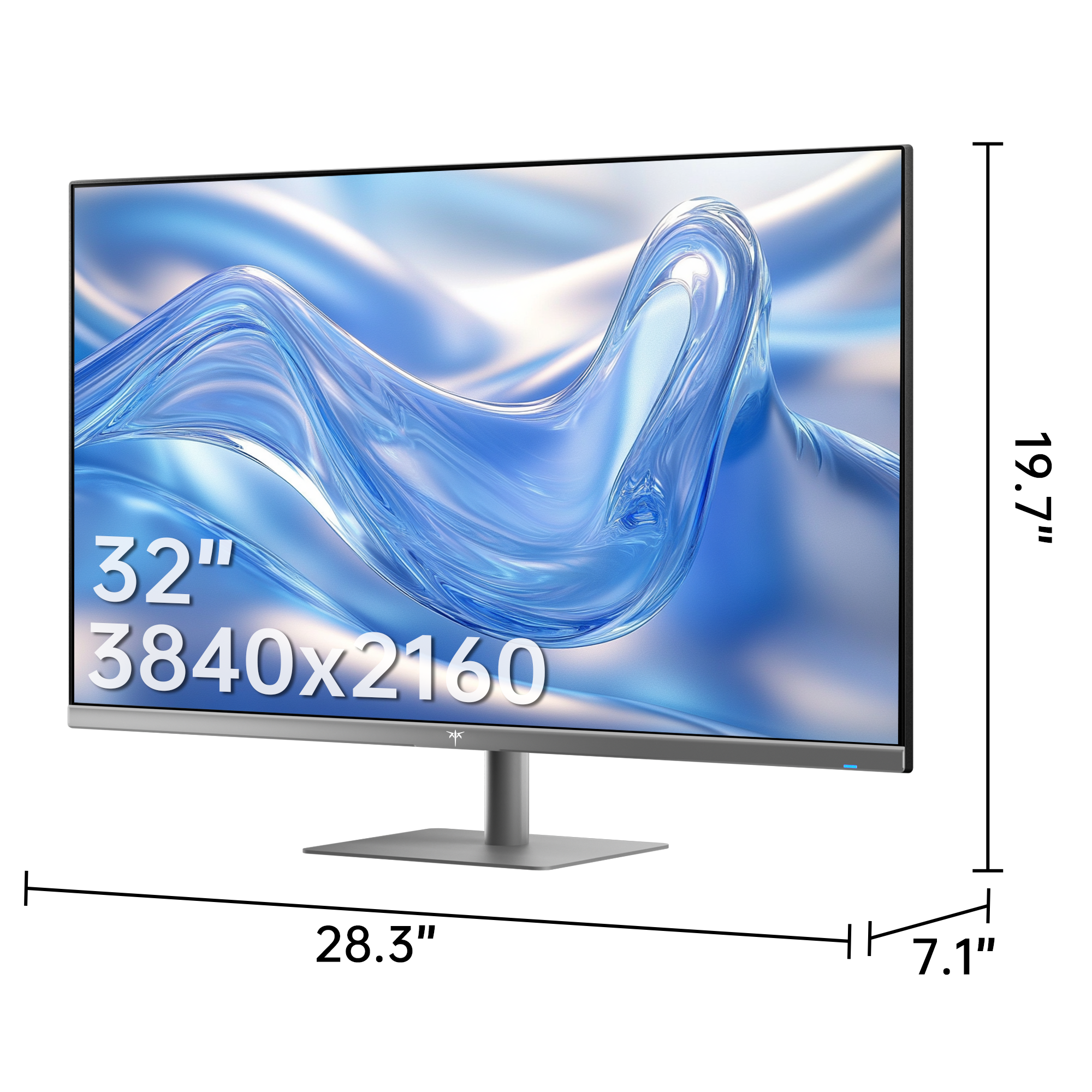
Smart TVs have transformed the way we consume media, blending traditional television functions with internet connectivity and app integration. These devices typically come equipped with high-definition displays, offering various resolution options, including 4K and even 8K for the latest models. For computer users, the display quality of a smart TV can be particularly appealing, providing vibrant colors and larger screen real estate for multitasking. Connectivity options are another essential aspect; most smart TVs feature HDMI ports, USB connections, and wireless capabilities, allowing seamless integration with computers, tablets, and mobile devices. Furthermore, smart TVs often include built-in streaming applications and voice control functionalities, enhancing their appeal for both entertainment and productivity.
Pros of Using a Smart TV as a Computer Monitor
One of the most significant advantages of using a smart TV as a computer monitor is the sheer size of the screen. Many smart TVs range from 43 inches to over 75 inches, making them ideal for users who appreciate a larger display for gaming, video editing, or multitasking. Additionally, smart TVs are multi-functional; they allow you to switch easily between work and entertainment without needing multiple devices. Cost savings can also be a factor; purchasing a large smart TV could prove more economical than buying a separate monitor with similar specifications. Personal experiences from friends have shown that using a smart TV for gaming can be particularly immersive, thanks to the expansive visuals and enhanced audio capabilities. All these benefits make a compelling case for considering a smart TV as a dual-purpose device.
Cons and Limitations of Smart TVs as Monitors
While there are many benefits to using a smart TV as a computer monitor, several drawbacks must be considered. One prominent issue is input lag, which refers to the delay between a user's actions on the computer and the corresponding display on the TV. This can significantly affect tasks that require real-time feedback, such as gaming or graphic-intensive work. Color accuracy can also be a concern, as many smart TVs are optimized for video content rather than precise color reproduction needed for design work. Additionally, compatibility problems may arise, especially with older computers or devices that may not connect seamlessly to the TV. Friends who have attempted this transition often mention frustration with these limitations, underscoring the importance of assessing your specific use case before making the switch.
How to Set Up a Smart TV as a Computer Monitor
Setting up your smart TV as a computer monitor is a straightforward process, but it does require some attention to detail. First, ensure you have the necessary cables, typically an HDMI cable, to connect your computer to the TV. Once you’ve made the connection, power on both devices. On your computer, navigate to the display settings and select the option to extend or duplicate your display, depending on your preference. For optimal performance, adjusting the resolution to match the TV's native resolution is recommended, often found in the settings menu. Additionally, you may want to adjust the TV's picture mode to 'PC mode' or 'Game mode' to reduce input lag and enhance clarity. Friends who have gone through this setup often share tips on tweaking their settings for the best experience, which can significantly improve your overall usage.
Alternative Options: Traditional Monitors vs. Smart TVs
When considering whether to use a smart TV or a traditional monitor, it's essential to weigh the pros and cons of each. Traditional monitors typically offer better color accuracy, lower input lag, and are specifically designed for computing tasks, making them a favorite for professionals in graphic design or gaming. They also tend to have adjustable stands for ergonomic setups, which is a feature often lacking in smart TVs. On the other hand, smart TVs provide versatility and a more expansive viewing experience, ideal for casual users who may want to switch between work and entertainment. Pricing can also vary significantly; while some high-end monitors may be costly, budget-friendly smart TVs can often provide a larger screen for a comparable price. Ultimately, the choice may come down to how you plan to use the screen and what features are most important for your setup.
Assessing Smart TVs as Dual-Purpose Displays
In conclusion, using a smart TV as a computer monitor is a viable option for many users, offering distinct advantages such as a larger display and multi-functionality. However, it is crucial to consider the potential drawbacks, including input lag and color accuracy issues. As we’ve explored, the suitability of a smart TV largely depends on individual needs and usage scenarios. Before making a decision, take the time to evaluate your specific requirements, whether that be for work, gaming, or entertainment. Ultimately, whether you opt for a smart TV or a traditional monitor, ensuring it aligns with your personal preferences will lead to a more satisfying and productive experience.
