How to Test NFC RFID Reader Compatibility with Your Smartphone (No Tech Degree Needed)
Author : Jaming Wong | Published On : 12 Nov 2026
You bought an NFC RFID reader to scan loyalty cards or inventory tags with your phone. You plug it in, open an app… and nothing. No beep, no scan, no clue why. Before you yeet the reader into the trash, let’s run a dead-simple test to figure out if your phone’s the problem—or the hardware. Spoiler: It’s usually the phone.
Before choosing an RFID reader for your project, it is important to understand which tag types your smartphone can recognize. You can also learn more about how to identify an RFID tag.
1. What You’ll Need
- NFC RFID Reader: We’ll use Cykeo’s mobile-compatible model as an example.
- Smartphone: Android 8+ or iPhone 7+ (older models often lack full NFC support).
- USB-C/Lightning Adapter: For wired readers (Bluetooth models skip this).
- 5 NFC Tags: Stickers, cards, or product tags.
Besides frequency compatibility, the performance of the antenna for RFID communication also affects reading distance and signal stability. A poorly designed antenna may cause weak detection or inconsistent scanning results, especially when testing with different smartphone models. In addition, the quality and chip sensitivity of each RFID tag can influence how quickly the phone recognizes the tag. Using high-quality RFID tags with optimized antenna design usually provides a more stable testing experience during compatibility checks.
2. Step 1: Check Your Phone’s NFC Chip
a. Android Phones
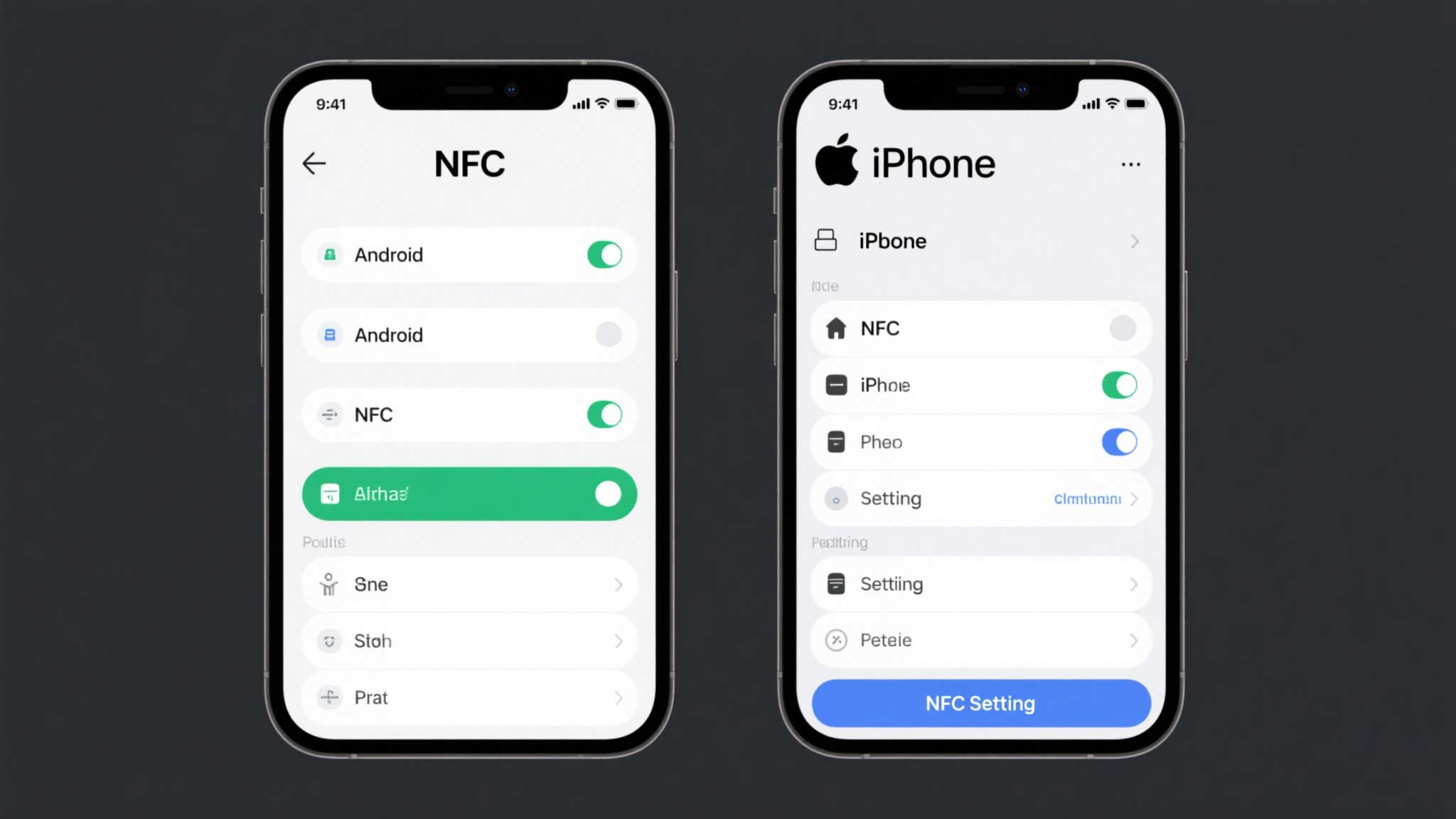
- Go to Settings > Connected Devices > Connection Preferences > NFC.
- Toggle NFC ON.
- If the menu doesn’t exist, your phone lacks NFC hardware (common on budget models).
b. iPhones
- iPhones only support NFC in background mode—no toggles.
- Test by holding a tag near the top of the phone. If it vibrates/chimes, NFC works.
Pro Tip: iPhones can’t write to tags without third-party apps. Android rules here.
3. Step 2: Test the Reader with a Free App
a. For Android:
- Download NFC Tools (free, no ads).
- Connect the reader via USB or Bluetooth.
- Open the app, tap “Scan”, and hold a RFID tag near the reader.
- Success: Tag UID and data pop up.
- Failure: App says “No NFC tag detected” (blame the phone or reader).
b. For iPhones:
- Download NFC Tag Reader by Cykeo (their free app skips Apple’s restrictions).
- Open the app, connect the reader, and scan.
- iPhone 14 Hack: Restart the phone if scans lag—iOS throttles NFC during updates.
4. Step 3: Diagnose Connection Issues
a. “Device Not Supported” Errors
- Fix 1: Use a USB-OTG cable (Android) or MFi-certified adapter (iPhone).
- Fix 2: Update your phone’s OS—manufacturers quietly drop NFC support.
b. Inconsistent Tag Reads
- Fix 1: Hold tags 1–2 inches from the reader (no waving).
- Fix 2: Avoid scanning near metal surfaces or wireless chargers.
Cykeo Workaround: Their readers auto-adjust RF power to reduce interference.
5. Step 4: Real-World Use Cases That Actually Work
a. Retail Inventory
- Android Only: Scan 100+ tags into Google Sheets using NFC Tools + Automate.
- iPhone Limit: Apple restricts bulk scanning to paid enterprise apps.
b. Loyalty Programs
- Write VIP codes to tags with Cykeo’s app—works on both OS.
c. Smart Home Triggers
- Android: Tap a tag to turn on lights (via Tasker).
- iPhone: Needs a $15/month HomeKit subscription. Ugh.
6. Phones That Flunk NFC Tests (Save Your Money)
a. Avoid These Android Models:
- Samsung Galaxy A03s, TCL 20 SE, Motorola Moto G Pure.
b. iPhones to Skip:
- iPhone 6, SE (1st gen), or older.
Takeaway: Testing NFC RFID reader compatibility takes 10 minutes—but most folks skip it and waste $100. Use free apps, check your OS, and remember: iPhones hate NFC freedom. For small biz tasks, grab a mid-range Android and a Cykeo reader. For Apple fans? Pray for iOS updates.
Related Reading: How to Check If NFC Is Working on Your Phone?
Most people don’t think about NFC until it suddenly stops working.
Maybe your phone won’t read a tag. Maybe a contactless payment fails for no obvious reason. Or perhaps you’re trying to set up an access card and nothing happens when you tap your phone.
The good news is that checking NFC isn’t complicated. In many cases, you can tell whether the problem is with the phone, the tag, or the settings in less than five minutes.
Read next: How to Check If NFC Is Working on Your Phone
Want to go beyond smartphone NFC testing?
Checking NFC compatibility with a smartphone is a quick way to confirm whether a reader or tag can communicate at the NFC level. However, for commercial RFID projects, the testing process usually involves more than just a phone scan. Factors like RFID tag performance, reader power, antenna installation, reading distance, and environmental interference can all affect the final result.
If you are evaluating RFID hardware for warehouse inventory, asset tracking, retail, or industrial applications, we recommend checking our complete guide on how to check if RFID is working. It covers practical testing methods for RFID tags, readers, and complete systems, helping buyers and solution providers avoid common problems before large-scale deployment.
Read more: How to Check If RFID Is Working: A Practical Guide Before Buying RFID Hardware in Bulk
Can Your Smartphone Really Test an NFC Reader? Here Is What You Need to Know
Many people start NFC testing with a simple question: “Can my smartphone read this NFC tag or work with this NFC reader?” In most cases, an Android phone is a convenient tool for checking basic NFC compatibility. However, smartphone testing only shows part of the picture. Factors like NFC protocol support, antenna performance, reading distance, and hardware design can still affect the final result.
If you are evaluating NFC or RFID hardware for a commercial project, we recommend checking our latest guide “How to Test NFC on Android”, where we explain the actual testing steps, common problems, and what buyers should confirm before ordering NFC readers in bulk.
Read the full guide: How to Test NFC on Android: A Practical Guide Before Buying NFC Hardware
How to Add RFID Module in Proteus
Learn how to add an RFID module to Proteus, configure the required library files, and set up the simulation environment for RFID projects. This practical tutorial helps students, developers, and electronics engineers understand how to simulate RFID module connections and test basic RFID functions before moving to real hardware development.
