Google Search Console Not Indexing Pages? Here’s What to Fix First
Author : Fiona Bingly | Published On : 21 Apr 2026
You hit "publish" on a high-quality piece of content, submit your sitemap, and even manually request indexing. Yet, weeks later, you check Google Search Console (GSC) only to see that dreaded gray status: Not Indexed.
If you are wondering why Google is not indexing your pages, you are not alone. Many website owners assume this is a technical glitch or a bug. However, in modern SEO, indexing is rarely a submission problem. It is usually a quality and prioritization problem.
Before you blindly click "Request Indexing" again, you need to understand the underlying reasons why Google ignores certain URLs and how to strategically fix them.
How Google Decides Whether to Index a Page
Google doesn't index everything it finds. To make it into the search results, a page must pass a four-step evaluation process:
1. Discovery
Before Google can index a page, it has to find it. Can Googlebot easily discover your URL through strong internal links, a clean sitemap, or external backlinks? If your page is an "orphan" (meaning no other pages link to it), discovery becomes much harder.
2. Crawling
Once discovered, Google must be able to crawl the page. Is the page technically accessible? Is it free from server errors, and is it allowed to be crawled according to your robots.txt file?
3. Indexing Value (Content Quality)
This is where most pages fail. Google asks: Does this page offer unique, useful, and non-duplicative information? If your page is thin, overly similar to other pages on your site, or lacks real value, Google will crawl it but refuse to index it.
4. Trust and Authority
Does Google view your overall domain as reliable enough to spend its limited "crawl budget" and indexing resources on? Newer sites or sites with a history of spammy content often struggle to earn this initial trust.
The Most Common "Not Indexed" Statuses in GSC (And How to Fix Them)
When you look at the Pages report in Google Search Console, you'll see specific reasons why pages aren't indexed. Here is a breakdown of the most common statuses and what you need to do.
Quick Reference Table
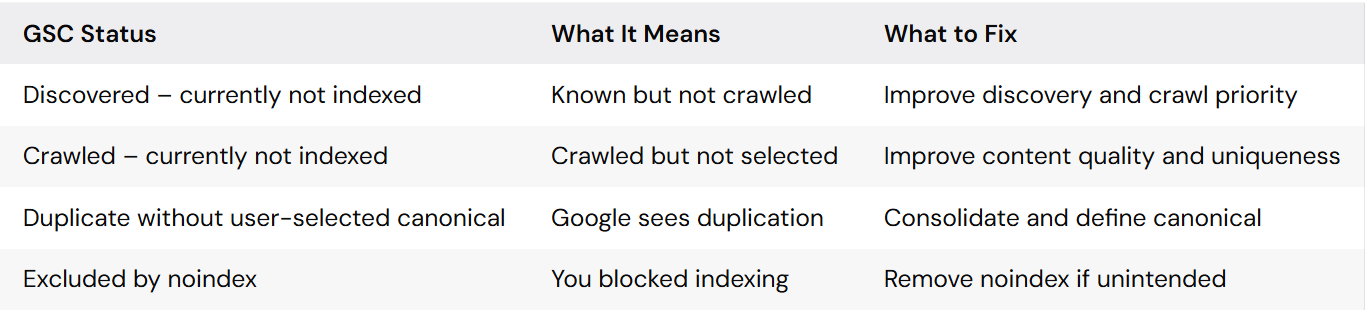
1. Discovered – currently not indexed
This status means Google knows your URL exists (usually via a sitemap or a link), but the Googlebot hasn't actually crawled it yet. Usually, this happens because Google's crawl budget for your site was maxed out, or the page wasn't deemed important enough to crawl immediately.
How to fix it:
- Build internal links: Link to this page from your homepage or high-traffic blog posts.
- Clean your sitemap: Remove low-value URLs (like tag pages or author archives) from your sitemap so Google focuses only on your money pages.
2. Crawled – currently not indexed (The Most Critical Issue)
If you see this, Google did visit your page, read the content, and actively decided it wasn't worth putting in the search results. This is almost always a content quality issue, not a technical one.
How to fix it:
- Add unique value: Stop publishing generic content. Add original data, expert quotes, comparative tables, or real-life examples.
- Format for readability and AI: Break up walls of text. Make your content "AI-ready" by using clear H2/H3 structures and answering questions directly (which helps both traditional SEO and modern AI Overviews).
3. Duplicate without user-selected canonical
Google has found multiple URLs with the exact same (or highly similar) content and doesn't know which one to rank. This often happens with e-commerce product variants or URL parameters (e.g., ?sort=price).
How to fix it:
- Use
<link rel="canonical" href="..."/>tags to point Google to the primary version of the page. - Merge thin, similar blog posts into one comprehensive ultimate guide.
4. Blocked by robots.txt or Excluded by ‘noindex’ tag
These are direct technical blocks. If a page is blocked by robots.txt, Googlebot cannot even crawl it. If it has a noindex tag, Google can crawl it but is forbidden from showing it in search results.
How to fix it:
- Check your SEO plugin (like Yoast or RankMath) to ensure you didn't accidentally toggle "do not allow search engines to show this page."
- Review your
robots.txtfile to ensure you aren't disallowing important directories.
Strategic Prioritization: What You Should Fix First
When dealing with thousands of unindexed pages, do not panic and do not try to fix everything at once. Follow this prioritization hierarchy:
- Fix "Crawled – currently not indexed" first. Because Google has already spent resources visiting these pages, fixing their content quality offers the fastest path to getting indexed and ranking.
- Stop blindly requesting indexing. Clicking "Request Indexing" on a low-quality page multiple times will not change Google's mind. It might even signal to Google that you are trying to spam the index.
- Prioritize quality over quantity. It is better to have 50 high-quality, fully indexed pages than 500 thin pages where 80% are ignored by Google. Prune your dead content.
A Simple Checklist to Improve Your Indexing Rate
Before you publish your next article, run it through this quick checklist to ensure maximum indexability:
- Internal Linking: Is this page linked from at least 3 other relevant pages on my site?
- Sitemap Check: Is this URL actually in my XML sitemap?
- Value Check: Does this page provide information that the top 10 current ranking pages do not?
- Directive Check: Is the page free of accidental
noindextags? - Formatting: Does the page use proper H2/H3 tags, bullet points, and multimedia to improve user engagement?
If these problems affect important templates or large sections of your site, a technical SEO audit can help uncover crawl waste, duplication, and indexing blockers at scale. For implementation-heavy fixes, explore our technical SEO service.
Frequently Asked Questions (FAQ)
How to fix noindex?
To fix a "noindex" issue, you need to remove the <meta name="robots" content="noindex"> tag from the HTML <head> of your page, or update the X-Robots-Tag in your HTTP header. If you are using WordPress, check the settings in your SEO plugin to ensure the page is set to "Index".
Why is Google Search Console not indexing?
Google Search Console may not index a page because it hasn't discovered it yet, the page is blocked by technical directives (like robots.txt), it is a duplicate of another page, or—most commonly—the content is considered too thin or low-quality to provide value to searchers.
How to fix errors in Google Search Console?
Start by identifying the exact error category in the "Pages" report. Technical errors (like 404s or server issues) require developer fixes or redirects. "Crawled/Discovered currently not indexed" statuses require SEO fixes, specifically improving internal linking and content quality. Always click "Validate Fix" in GSC once you've made your changes.
What is excluded by noindex tag in Google Search Console?
This status means Google successfully found and accessed your page, but it detected a "noindex" directive. Because of this tag, Google respects your command and intentionally excludes the page from search results. This is normal for admin pages or thank-you pages, but an error if it happens on your core blog posts.
Getting indexed is the foundational step of SEO. Focus on building an easily navigable site architecture and publishing genuinely helpful content, and indexing issues will largely resolve themselves.
